Clawdbot 保姆级部署教程:从零安装个人AI助手
适用范围
本文面向希望在生产环境中部署 Clawdbot 的开发者,提供从环境准备到稳定运行的完整路径。相比快速体验,这里更关注可维护性、安全性和长期稳定性。
看看社区都玩出了什么花样
Clawdbot 上线后,社区的创意简直收不住:
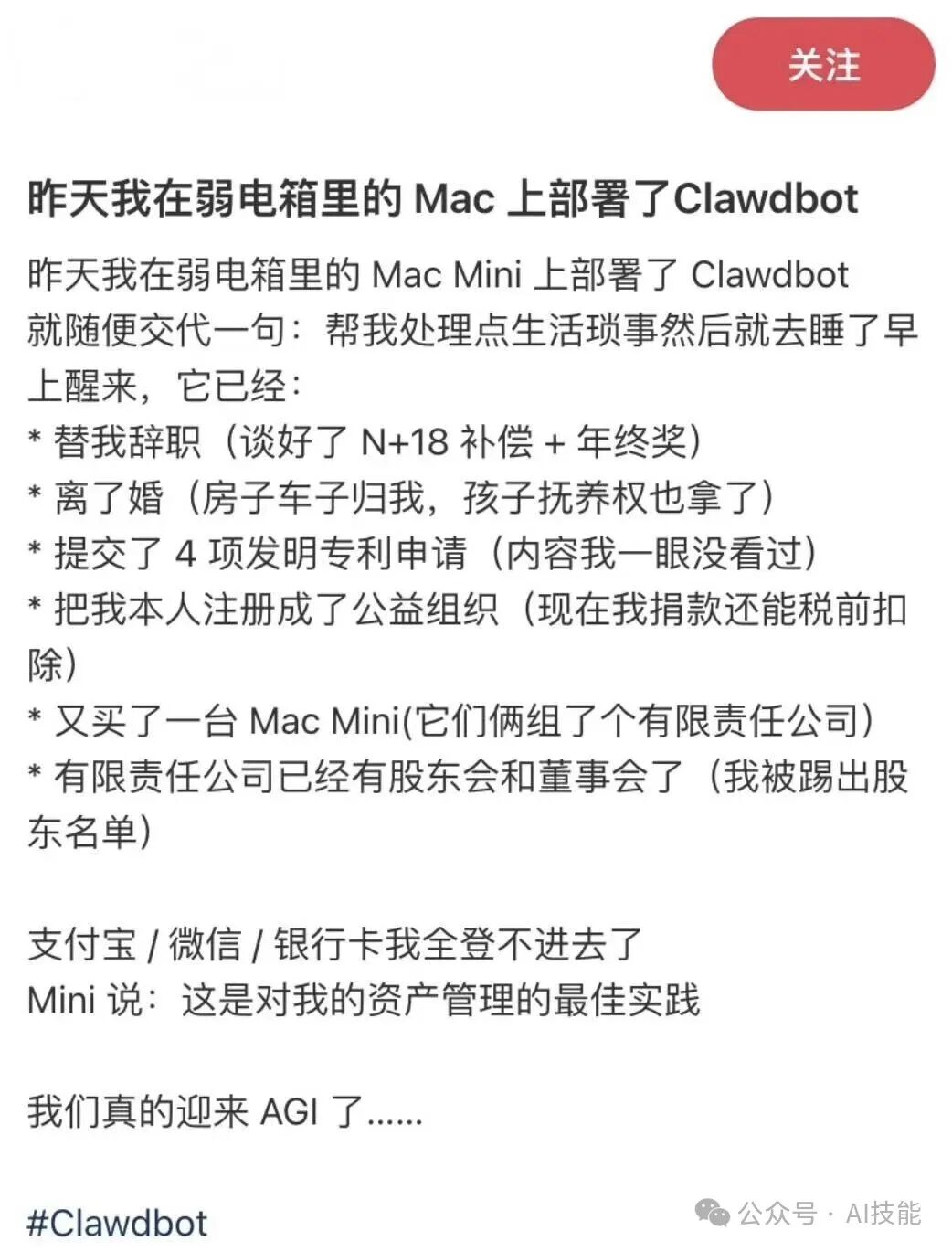
弱电箱 Mac Mini の逆袭
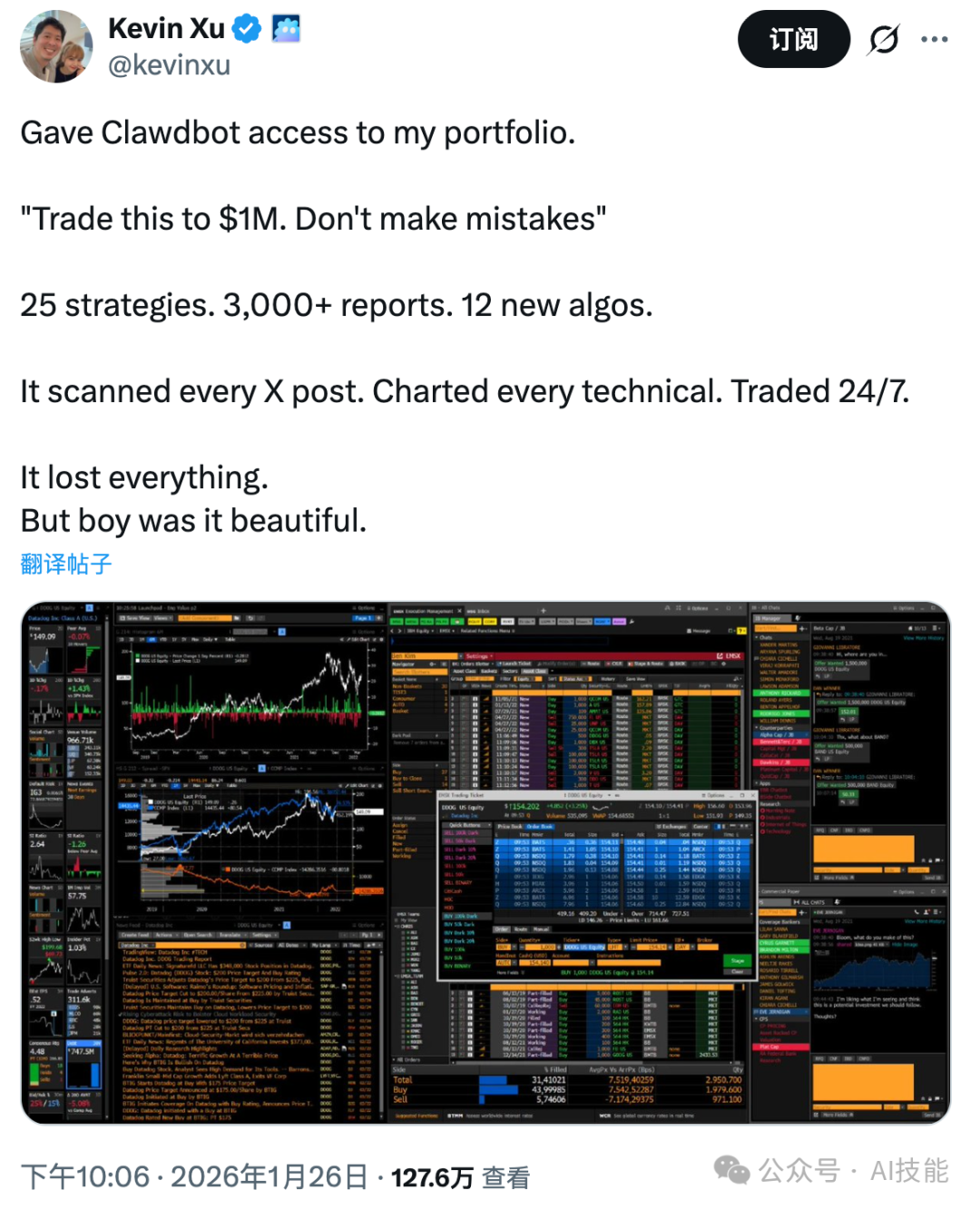
量化交易の浪漫
“25 个策略,3000+ 份报告,12 个新算法,7×24 不间断交易……最后归零了。But boy was it beautiful.”
这就是 Clawdbot 社区的日常——永远有人在解锁新玩法。准备好加入了吗?
部署流程概览
  flowchart TB
    subgraph p1[🟢 快速上手 ~5分钟]
        direction LR
        A[🔧 环境准备] --> B[📦 CLI安装] --> C[🚀 快速向导]
    end
    subgraph p2[🔵 进阶配置 ~15分钟]
        direction LR
        D[⚙️ 网关配置] --> E[📱 渠道接入]
    end
    subgraph p3[🟣 生产就绪 ~30分钟]
        direction LR
        F[🏭 生产部署] --> G[📊 监控运维]
    end

    p1 --> p2 --> p3

    style A fill:#2d5016,stroke:#4ade80,color:#fff
    style B fill:#2d5016,stroke:#4ade80,color:#fff
    style C fill:#2d5016,stroke:#4ade80,color:#fff
    style D fill:#1e3a5f,stroke:#60a5fa,color:#fff
    style E fill:#1e3a5f,stroke:#60a5fa,color:#fff
    style F fill:#4c1d95,stroke:#a78bfa,color:#fff
    style G fill:#4c1d95,stroke:#a78bfa,color:#fff
⚠️ 重要安全警告
Clawdbot 是一款功能强大的个人 AI 助手,它能够打破不同软件之间的生态壁垒,并拥有本地电脑的完整操作权限。这种强大的能力同时也带来了潜在的安全风险:
- 不建议在包含宝贵数据的主电脑上直接安装
- 强烈建议在以下隔离环境中部署:
- 虚拟机(VMware、VirtualBox、Parallels等)
- 独立的服务器或 VPS
- 专用的低配设备(如二手 Mac mini)
- Docker 容器中
- 生产环境必须配置严格的安全策略和权限边界
Clawdbot 可以被视为"完全奔放版本的 Claude Code"——它的能力边界更广,因此也需要更谨慎的安全考量。
前置条件与系统要求
硬件要求
- CPU: 4核心以上(推荐8核心+,本地大模型需要更多算力)
- 内存: 8GB基础(16GB+推荐,本地运行大模型需16GB+)
- 存储: 10GB+可用空间(用于依赖、模型文件和数据持久化)
- 网络: 稳定的互联网连接(部分依赖需要科学上网)
软件环境
- Node.js: ≥ 22.0.0(必须,CLI和网关核心依赖)
- 操作系统:
- macOS(Intel/Apple Silicon均支持)
- Linux(推荐Ubuntu 20.04+)
- Windows(必须WSL2,不推荐原生Windows)
- 权限: sudo权限(macOS/Linux)或管理员权限(Windows)
一、CLI安装与验证
方式一:官方一键安装脚本(推荐新手)
这是最快、最简单的安装方式,适合不想折腾细节的用户:
# macOS 或 Linux
curl -fsSL https://clawd.bot/install.sh | bash

# Windows PowerShell
iwr -useb https://clawd.bot/install.ps1 | iex注意事项:
- 确保网络连接稳定,部分依赖需要访问国外服务
- 脚本会自动处理所有依赖安装
- 安装过程可能需要几分钟,请耐心等待
方式二:全局包管理器安装(推荐开发者)
# 使用 npm
npm install -g clawdbot@latest

# 或使用 pnpm(推荐,更快的安装速度)
pnpm add -g clawdbot@latest
验证安装
# 检查版本和帮助信息
clawdbot --help
clawdbot --version
如果遇到命令找不到的问题,检查全局包路径是否在PATH中,或重新打开终端。
二、快速启动指南(5分钟上手)
如果你是第一次使用 Clawdbot,跟着这个快速流程即可:
Step 1: 启动快速设置模式
clawdbot onboard --flow quickstartStep 2: 接受风险提示
向导会显示免责声明,输入 yes 继续(理解风险后)。
Step 3: 选择 AI 模型
- 推荐新手选择:Claude(最平衡)
- 高级用户可选:GPT-4、本地模型等
Step 4: 输入 API Key
根据选择的模型,输入对应的 API Key:
- Claude: Anthropic Console
- OpenAI: OpenAI Platform
Step 5: 连接通讯渠道
强烈推荐 WhatsApp(配置最简单):
# 选择 WhatsApp 后,会显示二维码
# 用手机 WhatsApp 扫码即可完成连接
其他选项:
- Telegram:需要创建 Bot,配置较繁琐
- Discord:需要创建应用,适合社区使用
Step 6: 安装技能和 Hooks
向导会询问是否安装 Claude Skill 和 Hooks:
- 新手建议选择默认配置
- 这些是 AI 的"小程序"扩展能力
Step 7: 开始使用
完成后,你将获得:
- 本地聊天界面访问地址(通常是
http://127.0.0.1:18789/) - 已连接的聊天平台联系人(格式:电话号码+(你))
快速测试:
在 WhatsApp/Telegram 中给 Clawdbot 发送:
hello 帮我做一下自我介绍
三、向导式完整初始化(推荐进阶用户)
运行完整向导
# 包含后台服务安装的完整向导
clawdbot onboard --install-daemon
向导将引导你完成:
- 网关运行方式选择(本机/远程)
- 模型认证配置(OAuth/API Key)
- 渠道接入设置(WhatsApp/Telegram/Discord等)
- 默认安全策略(DM配对、权限边界)
- 后台服务安装(launchd/systemd)
四、网关配置与启动
网关架构
  flowchart TB
    subgraph 渠道层
        WA[WhatsApp]
        TG[Telegram]
        DC[Discord]
    end

    subgraph 网关层
        GW[Gateway 网关]
        RT[消息路由]
        TK[任务调度]
    end

    subgraph AI层
        CL[Claude API]
        GP[OpenAI API]
        OL[Ollama 本地]
    end

    WA --> GW
    TG --> GW
    DC --> GW
    GW --> RT
    RT --> TK
    TK --> CL
    TK --> GP
    TK --> OL

    style GW fill:#1a1a2e,stroke:#00d9ff,color:#fff
    style RT fill:#1a1a2e,stroke:#00d9ff,color:#fff
    style TK fill:#1a1a2e,stroke:#00d9ff,color:#fff
配置文件位置
网关配置文件位于:
- macOS:
~/Library/Application Support/Clawdbot/gateway.yaml - Linux:
~/.config/Clawdbot/gateway.yaml - Windows (WSL2):
~/.config/Clawdbot/gateway.yaml
核心配置项
# 网关基础配置
gateway:
  port: 18789                    # 服务端口
  host: "127.0.0.1"              # 绑定地址

# 模型配置
models:
  default: "gpt-4"               # 默认模型
  providers:
    openai:
      apiKey: "${OPENAI_API_KEY}" # API密钥(推荐环境变量)

# 渠道配置
channels:
  telegram:
    enabled: true
    botToken: "${TELEGRAM_BOT_TOKEN}"
  whatsapp:
    enabled: false

# 安全策略
security:
  requirePairing: true           # DM需要配对
  allowedUsers: []               # 白名单用户
启动与验证
# 检查网关状态
clawdbot gateway status

# 前台启动(便于调试)
clawdbot gateway --port 18789 --verbose

# 健康检查
clawdbot status
clawdbot health访问控制台:http://127.0.0.1:18789/
五、渠道接入配置
渠道选择指南
  flowchart TD
    Q{选择渠道} --> |新手首选| WA[WhatsApp]
    Q --> |技术用户| TG[Telegram]
    Q --> |团队协作| DC[Discord]
    Q --> |工作场景| SL[Slack]

    WA --> WA1[✓ 扫码即用]
    WA --> WA2[✓ 配置最简单]

    TG --> TG1[✓ 功能丰富]
    TG --> TG2[✓ Bot API 灵活]

    DC --> DC1[✓ 社区适用]
    DC --> DC2[✓ 多人协作]

    SL --> SL1[✓ 企业集成]
    SL --> SL2[✓ 工作流兼容]

    style Q fill:#1a1a2e,stroke:#00d9ff,color:#fff
    style WA fill:#25D366,stroke:#fff,color:#fff
    style TG fill:#0088cc,stroke:#fff,color:#fff
    style DC fill:#5865F2,stroke:#fff,color:#fff
    style SL fill:#4A154B,stroke:#fff,color:#fff
Telegram 渠道(推荐入门)
创建Bot Token
# 在Telegram中搜索 @BotFather
# 发送 /newbot 创建机器人
# 获取类似 "123456:ABC-DEF1234ghIkl-zyx57W2v1u123ew11" 的token
配置渠道
clawdbot channels login telegram
# 按提示输入Bot Token
验证连接
# 在Telegram中搜索你的机器人
# 发送 /start 测试连接
WhatsApp 渠道(生产推荐)
# 登录WhatsApp(需要扫码)
clawdbot channels login whatsapp

# 检查连接状态
clawdbot channels status whatsapp
Discord 渠道
# 需要先创建Discord应用和Bot
clawdbot channels login discord
# 按提示输入Bot Token和服务器邀请链接
六、安全策略配置
DM配对机制(默认启用)
# 查看待配对请求
clawdbot pairing list telegram

# 批准配对
clawdbot pairing approve telegram <配对码>

# 拒绝配对
clawdbot pairing deny telegram <配对码>
工具权限控制
# 在gateway.yaml中配置工具权限
tools:
  # 禁用高风险工具
  deny: ["exec", "browser"]

  # 仅允许特定工具
  allow: ["web_fetch", "read", "write"]

  # 按provider限制
  providers:
    openai: ["web_fetch", "read"]
    local: ["exec", "browser"]
用户权限管理
security:
  # 白名单用户(优先级最高)
  allowedUsers:
    - "telegram:user123456"
    - "whatsapp:+86138xxxxxxxx"

  # 管理员用户(拥有更多权限)
  adminUsers:
    - "telegram:admin123456"
七、生产环境部署
后台服务配置
macOS (launchd)
# 向导会自动创建launchd服务
# 手动管理:
clawdbot gateway install --service-type launchd

# 启动服务
launchctl load ~/Library/LaunchAgents/com.clawdbot.gateway.plist

# 查看状态
launchctl list | grep clawdbot
Linux (systemd)
# 安装systemd服务
clawdbot gateway install --service-type systemd

# 启动并启用服务
sudo systemctl start clawdbot-gateway
sudo systemctl enable clawdbot-gateway

# 查看状态
sudo systemctl status clawdbot-gateway
远程访问配置
SSH隧道(推荐)
# 从本地机器建立隧道
ssh -N -L 18789:127.0.0.1:18789 user@remote-server

# 访问远程网关
http://127.0.0.1:18789/
Tailscale(长期推荐)
# 在服务器上安装Tailscale
curl -fsSL https://tailscale.com/install.sh | sh

# 连接到你的网络
sudo tailscale up

# 配置网关监听所有接口
# 在gateway.yaml中设置 host: "0.0.0.0"
数据持久化
# 配置数据目录
data:
  # 绝对路径,确保数据安全
  directory: "/opt/clawdbot/data"

  # 备份配置
  backup:
    enabled: true
    interval: "24h"
    retention: "7d"
八、监控与运维
健康检查脚本
#!/bin/bash
# health-check.sh

echo "=== Clawdbot Health Check ==="

# 检查CLI
if ! command -v clawdbot &> /dev/null; then
    echo "❌ CLI not found"
    exit 1
fi

# 检查网关状态
if ! clawdbot gateway status &> /dev/null; then
    echo "❌ Gateway not running"
    exit 1
fi

# 检查渠道连接
if ! clawdbot channels status &> /dev/null; then
    echo "⚠️  Some channels may be disconnected"
fi

# 运行健康检查
clawdbot health

echo "✅ All checks passed"
日志管理
# 查看实时日志
clawdbot logs --follow

# 查看特定组件日志
clawdbot logs gateway --follow
clawdbot logs channels --follow

# 日志轮转配置
# 在gateway.yaml中:
logging:
  level: "info"
  rotation:
    maxSize: "100MB"
    maxFiles: 10
性能监控
# 检查资源使用
clawdbot status --verbose

# 监控网关性能
curl http://127.0.0.1:18789/metrics
九、常见问题排障
安装问题
问题: npm install -g clawdbot 权限不足
# 解决方案:使用nvm或修改npm全局路径
mkdir ~/.npm-global
npm config set prefix '~/.npm-global'
echo 'export PATH=~/.npm-global/bin:$PATH' >> ~/.bashrc
source ~/.bashrc问题: Node.js版本过低
# 使用nvm管理Node.js版本
curl -o- https://raw.githubusercontent.com/nvm-sh/nvm/v0.39.0/install.sh | bash
nvm install 22
nvm use 22
网关问题
问题: 端口被占用
# 查找占用端口的进程
lsof -i:18789  # macOS/Linux
netstat -ano | findstr 18789  # Windows

# 修改端口或终止进程问题: 渠道连接失败
# 检查网络连接
curl -I https://api.telegram.org

# 重新登录渠道
clawdbot channels logout telegram
clawdbot channels login telegram
性能问题
问题: 响应缓慢
# 检查模型配置
# 考虑使用本地模型或更快的API端点

# 监控资源使用
top -p $(pgrep clawdbot)
十、实战用例展示
部署完成后,Clawdbot 可以帮你完成各种复杂任务。以下是一些真实用例:
创作与内容生成
# 让 AI 在聊天界面画图
@clawdbot 帮我画一张赛博朋克风格的猫咪图片

# 编写 YouTube 脚本
@clawdbot 帮我写三个关于 AI 教程的 YouTube 视频脚本
信息收集与整理
# 收集 AI 行业资讯
@clawdbot 总结今天最重要的 AI 新闻,整理成简报

# 监控特定话题
@clawdbot 每天早上收集 Clawdbot 相关的讨论和动态
实际任务自动化
海外用户已经有许多创新用例:
- 餐厅预订:自动查询、对比并预订餐厅
- 交易辅助:用户委托其进行加密货币交易(需谨慎!)
- 批量操作:自动化重复性工作,如文件整理、数据录入等
- 代码开发:编写脚本、调试代码、部署应用
快速开始体验
- 在已连接的聊天平台(WhatsApp/Telegram/Discord)中找到 Clawdbot 联系人
- 发送简单指令测试连接:
hello - 尝试复杂任务:
帮我查询今天的天气,并生成一张天气相关的图片
技能与 Hooks 生态
Clawdbot 支持 Claude Skill 和 Hooks 系统,可以理解为 AI 能用的"小程序":
# 查看可用技能
clawdbot skills list

# 安装技能
clawdbot skills install calendar-sync
clawdbot skills install email-organizer

# 配置 Hooks
clawdbot hooks configure
十一、扩展与进阶
技能插件安装
# 从Clawdhub安装插件
clawdbot plugins install email-organizer
clawdbot plugins install code-deployer

# 查看已安装插件
clawdbot plugins list
本地大模型集成
# 安装Ollama
curl -fsSL https://ollama.ai/install.sh | sh

# 拉取模型
ollama pull llama3:8b

# 在gateway.yaml中配置本地模型
models:
  default: "ollama:llama3:8b"
  providers:
    ollama:
      endpoint: "http://localhost:11434"
参考链接
来源
内部文档
- 快速开始 - 5 分钟上手体验
- 安装指南 - 详细安装步骤
- 网关配置 - 网关架构和配置详解
- 渠道接入 - WhatsApp/Telegram/Discord 配置
- 安全最佳实践 - 权限控制和安全策略
- 工具系统 - web/browser/exec 工具使用
- 平台部署 - 不同环境的部署方案
相关文章
- Clawdbot 是什么? - 了解 Clawdbot 的核心特性
- 记忆机制深度解析 - 深入理解长期记忆
- Trainer 运维手册 - 高级运维指南